OCS Browser – Using the Web Panel
OCS Browser allows you to manage Cloud4You Object Cloud Storage directly from a web browser.
The panel allows you to:
- browse buckets,
- create and delete buckets,
- create folders,
- upload files,
- download files,
- delete files,
- manage bucket settings,
- configure browser access.
Logging in
To log in, you need:
- Access Key ID
- Secret Access Key
Enter the credentials in the appropriate fields and click:
Connect
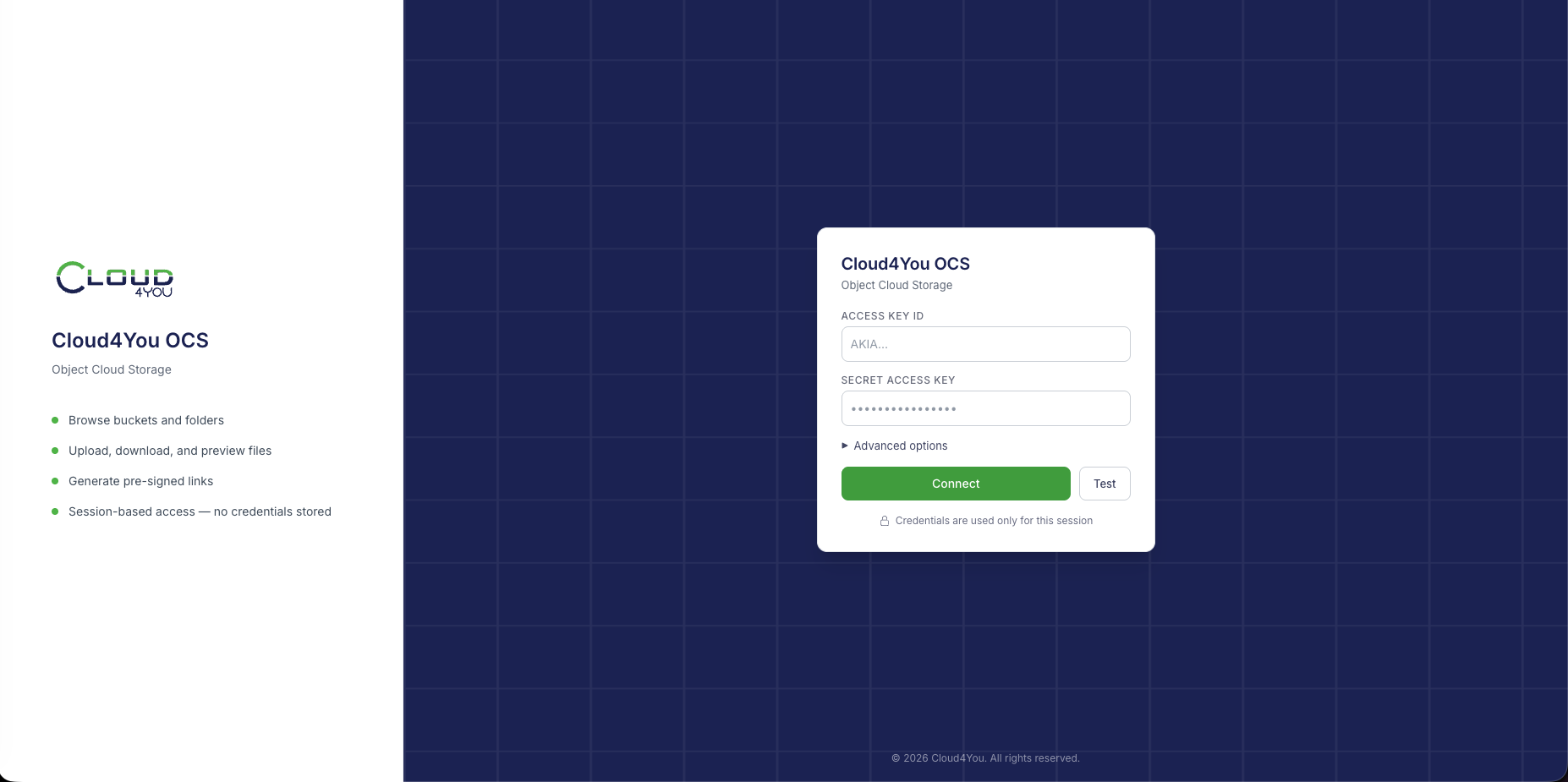
After a successful login, you will see the list of buckets available to the account used.
If login fails, check:
- whether the Access Key ID is correct,
- whether the Secret Access Key is correct,
- whether the values contain an extra space at the beginning or end.
Main screen
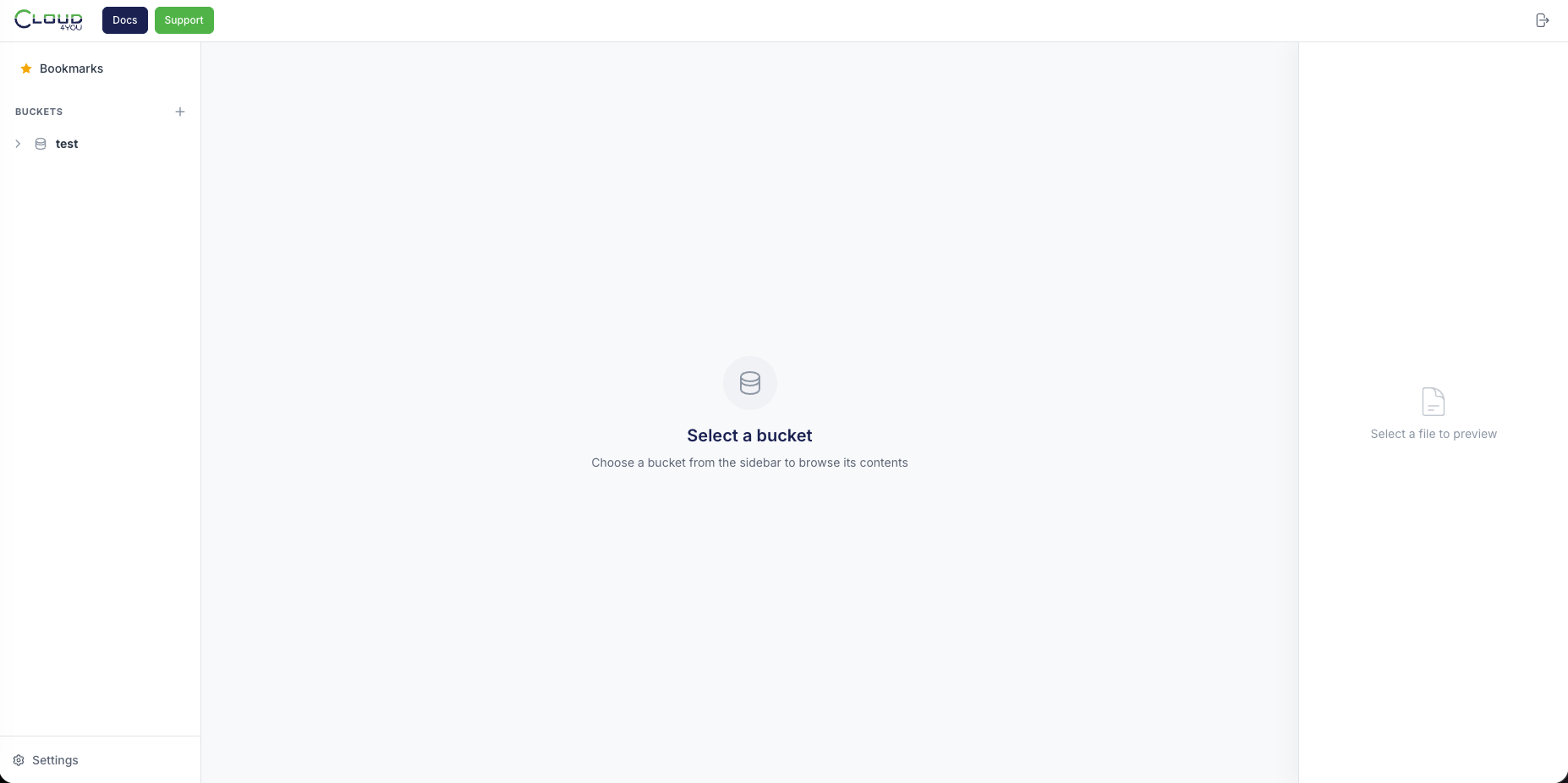
After logging in, the screen is divided into several areas.
The list of buckets is located on the left.
At the top you will find, among other things:
- Docs – Cloud4You documentation,
- Support – support portal,
- search,
- logout button.
Creating a bucket
A bucket is the main container in which files are stored.
The simplest way to think about it is as a top-level directory.
Example:
or:
To create a bucket:
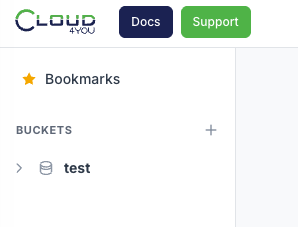
- find the Buckets section on the left,
- click the + sign,
- enter the bucket name,
- confirm creation.
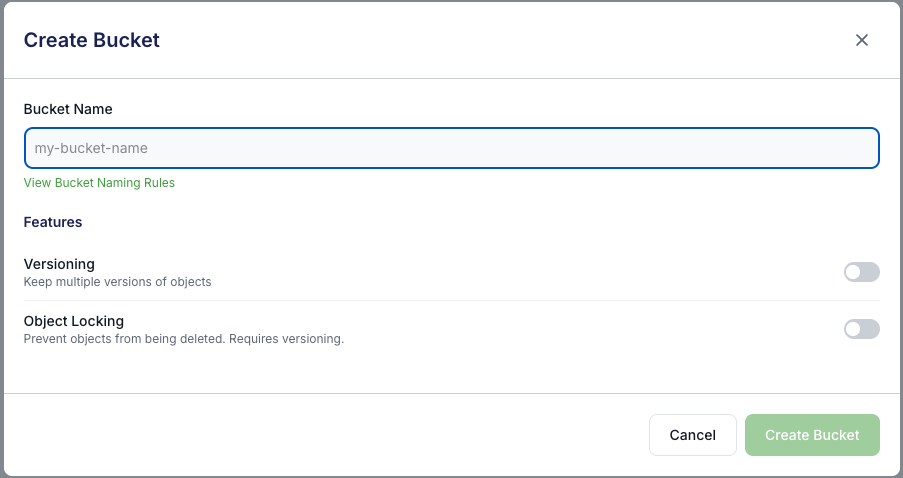
After creation, the new bucket will appear in the list on the left.
Bucket name
The safest option is to use:
- lowercase letters,
- numbers,
- hyphens.
Example:
Avoid:
and names containing spaces or unusual characters.
Opening a bucket
To open a bucket:
- find it in the list on the left,
- click its name.
After opening it, you will see the files and folders it contains.
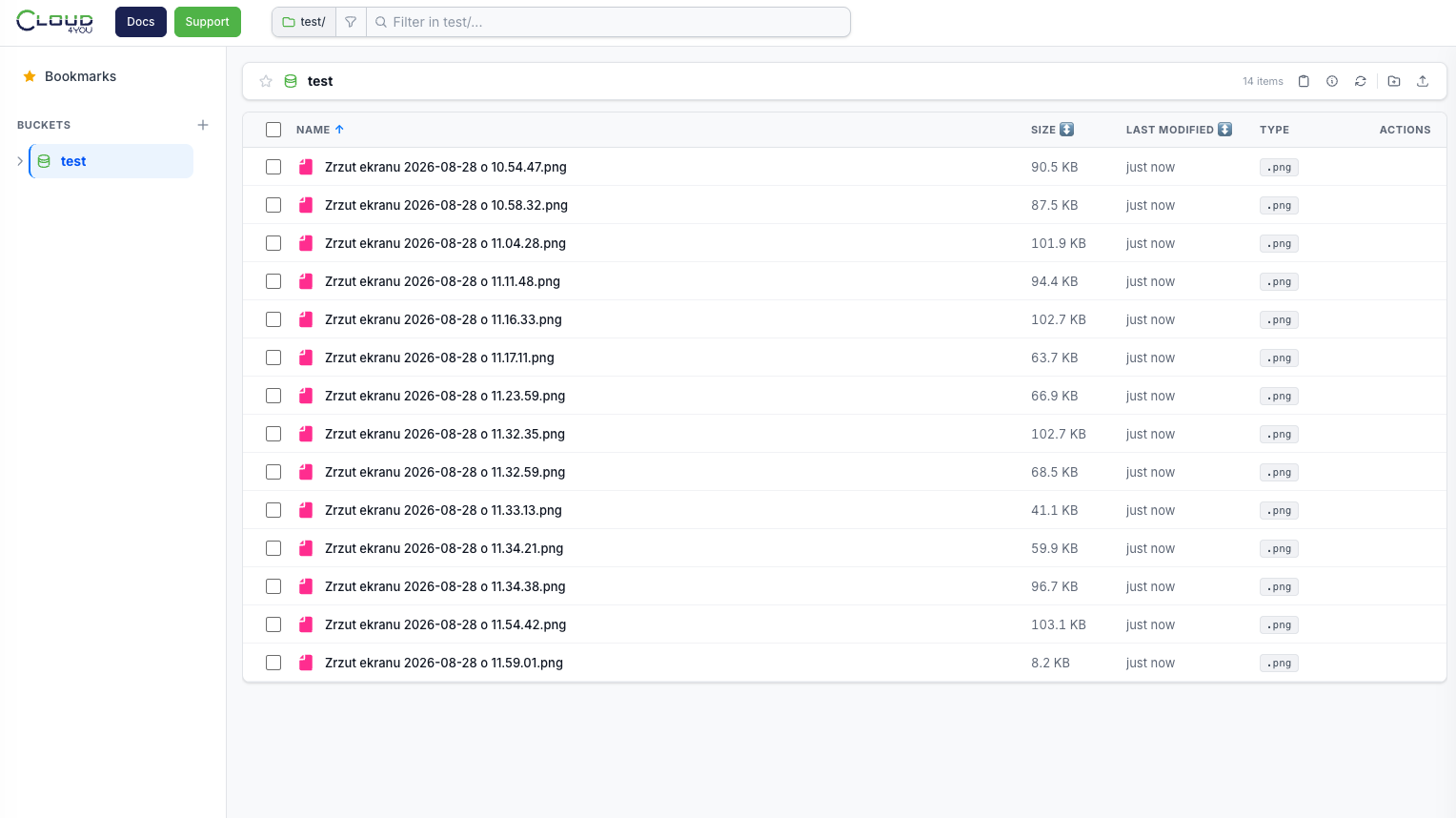
Creating a folder
OCS does not use traditional directories in the same way as a regular disk, but the panel presents the structure as folders.
To create a folder:
- open the bucket,
- go to the location where you want to create the folder,
- click New Folder or the folder creation button,
- enter a name,
- confirm.
Example:
or:
Uploading a file
To upload a file to a bucket:
- open the selected bucket,
- go to the appropriate folder,
- click Upload,
- click Click to upload,
- select a file from your computer,
- confirm the upload.
You can also drag a file from your computer directly into the upload window.
When the upload is complete, the file will appear in the list.
First upload and CORS configuration
Files uploaded through the web panel are transferred directly between the browser and Cloud4You Object Storage.
For this reason, access from the web panel must be explicitly allowed for the bucket.
This setting is configured separately for each bucket.
To enable file uploads through the panel:
- open the bucket,
- click Settings,
- go to CORS Configuration,
- select Allow Cloud4You OCS,
- click Save CORS Configuration.
After saving the configuration, try the upload again.
Does CORS affect the S3 API?
No.
CORS primarily applies to access performed from a web browser.
It does not affect standard connections made by:
- Veeam,
- AWS CLI,
- rclone,
- applications using S3 libraries,
- other systems communicating directly with the S3 API.
In other words:
CORS does not replace the Access Key, Secret Key, or access policies. It is an additional control for requests made from a browser.
Downloading a file
To download a file:
- open the bucket,
- find the file,
- select the file,
- click Download.
The file will be downloaded by the browser.
File preview
After clicking a file, a panel with information or a preview may appear on the right.
Preview availability depends on the file type.
Not every format can be displayed directly in the browser. In that case, the file can still be downloaded normally.
Deleting a file
To delete a file:
- find the file,
- select Delete,
- confirm the operation.
Deleting a file may be irreversible. If the bucket uses versioning or Object Lock, the behavior may be different.
Renaming a file or folder
If Rename is available:
- select the file or folder,
- click Rename,
- enter the new name,
- confirm.
In OCS, renaming an object is technically implemented differently than on a regular disk. The panel handles this operation automatically for the user.
Copying and moving
Files may provide the following options:
- Copy
- Move
After selecting the operation, choose the destination bucket or folder and confirm.
For large files, the operation may take longer.
Bookmarks
Selected locations can be saved as bookmarks.
Click Bookmarks to open saved locations.
Bookmarks are a convenience feature in the panel and do not change OCS permissions.
Search
After opening a bucket, you can use the search field at the top.
The panel may allow you to:
- filter the current folder,
- search in subfolders as well.
With a very large number of objects, searching may take a moment.
Settings – bucket settings
After selecting a bucket, click:
Settings
A settings panel will open on the right.
Depending on the configuration and permissions, the following options may be available:
- Versioning,
- Object Lock,
- Default Retention,
- Tags,
- CORS Configuration,
- Bucket Policy.
Versioning
Versioning allows you to store subsequent versions of the same object.
Example:
is overwritten with a new version.
With versioning enabled, the previous version may still exist in Object Storage.
This may help in cases of:
- accidentally overwriting a file,
- accidentally deleting the current version,
- needing to return to an older version.
Versioning increases storage usage because older object versions may also consume space.
Object Lock
Object Lock protects objects from deletion or modification for a specified period.
It can be used for:
- backups,
- data that requires protection from accidental deletion,
- data subject to retention requirements.
Object Lock is a feature that should be enabled deliberately.
Do not set a long retention period “just to test it.” A protected object may not be removable before the retention period ends.
Default Retention
Default Retention defines the default protection period for new objects in a bucket.
If you configure retention, new objects may automatically receive protection for the specified period.
Before changing this option, make sure you understand how it works.
Deleting a bucket
A bucket can be deleted from the list on the left.
Normally, the bucket must be empty before it can be deleted.
To delete a bucket:
- make sure the data in it is no longer needed,
- remove the objects stored in it,
- select the bucket deletion option,
- confirm the operation.
Before deleting a bucket, double-check that you selected the correct one.
Logging out
When you finish working, click the logout icon in the upper-right corner.
The credentials used to log in are used for the current panel session.
On a shared computer, always log out when you finish.
Docs and Support
Two buttons are available in the top bar:
Docs
Opens Cloud4You documentation:
Support
Opens the support portal:
Most common problems
I cannot log in
Check:
- Access Key ID,
- Secret Access Key,
- whether the account has access to Object Storage.
I can see the bucket, but upload does not work
First check the CORS configuration:
Then try uploading the file again.
I cannot delete a file
Check whether:
- the object is protected by Object Lock,
- retention is active,
- the account has the required permissions.
I cannot delete a bucket
The bucket is most likely not empty.
Delete its contents and try again.
If versioning is enabled, older object versions may still exist in the bucket.
I cannot see a specific feature
The availability of some features depends on the permissions of the Access Key being used.
Quick reference
I want to create a bucket
I want to upload a file
If this is the first upload for the bucket:
I want to download a file
I want to share a file using a link
I want to change bucket settings
I want to log out
Important rules
- Never share your Secret Access Key.
- Do not paste access keys into support tickets, messages, or screenshots.
- Before deleting a file or bucket, check the name twice.
- Enable Object Lock and retention deliberately.
- A pre-signed URL provides temporary access to a specific object – share it only with the intended recipients.
- On a shared computer, always log out when you finish.
- If you do not know what a Bucket Policy does, do not modify it by trial and error.